


For private customers
At checkout, product prices are automatically adjusted according to the VAT rate in your delivery country.

Showing 3 of 3 products with selected filters
3 / 3

SKU: 1391635
EAN: 5908267960288

SKU: 1394374
EAN: 02059082679429183720

SKU: 1458492
EAN: 4711378431452
No products match your selected filters.
Has your laptop become slow, do programs take ages to open, and has multitasking become frustrating? Before buying a new device, consider one of the most effective and affordable upgrades: increasing your RAM. SO-DIMM memory, designed specifically for laptops and other compact devices, is the key to unlocking your machine’s potential. More and faster laptop memory lets you keep more applications open at once, work with large files and improve overall system responsiveness.
It’s easy to get confused by the world of computer components. When it comes to memory, there are two main standards: SO-DIMM and DIMM. The difference is purely physical. SO-DIMM (Small Outline Dual In-line Memory Module) is significantly smaller and more compact, making it ideal for laptops, All-in-One computers and Mini PCs, where space is limited. DIMM (Dual In-line Memory Module) is larger and used in desktop computers. So if you’re planning to upgrade your laptop’s memory, SO-DIMM is the only right choice. Find a wide selection of both types of RAM in our online store to find the right solution for your device.
Buying the right SO-DIMM memory requires some knowledge of its technical specifications. The wrong choice may simply not work or could limit your system’s performance. Here are the key things to look out for to ensure your investment pays off and your laptop memory upgrade goes smoothly.
This is the most important compatibility criterion. Your laptop’s motherboard supports only one type of memory. DDR5 is the latest standard, offering the highest speeds and best energy efficiency—ideal for modern gaming and work laptops. DDR4 is still widely used and is an excellent choice for many laptops from recent years. DDR3 is an older standard found in older devices. Before buying, be sure to check your laptop’s specifications to find out which type of laptop memory is right for you.
Memory capacity determines how much data your computer can actively process at once. The amount you need depends entirely on how you use your device. Here’s a general guide:
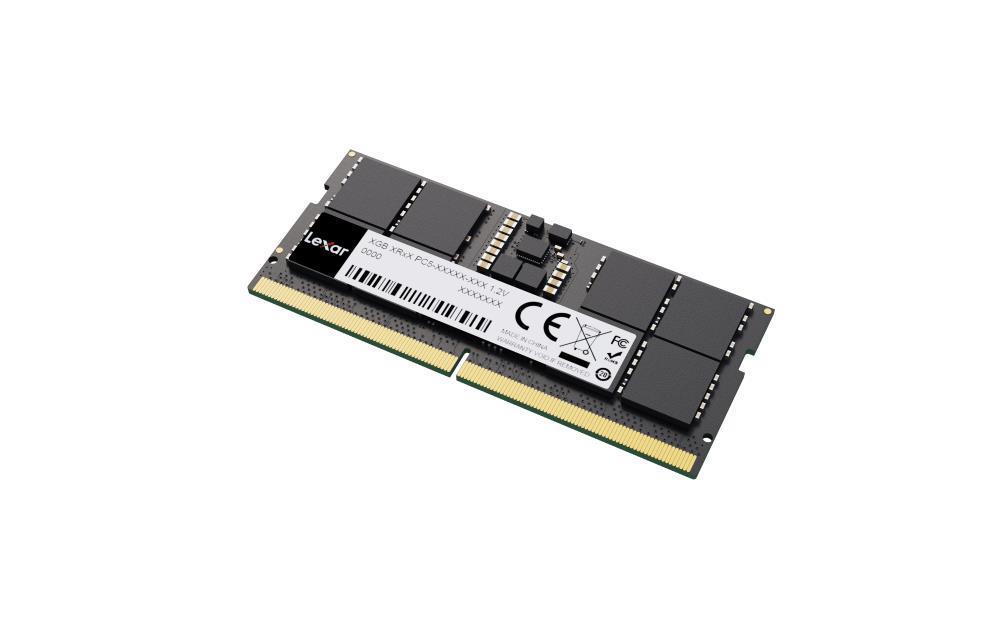
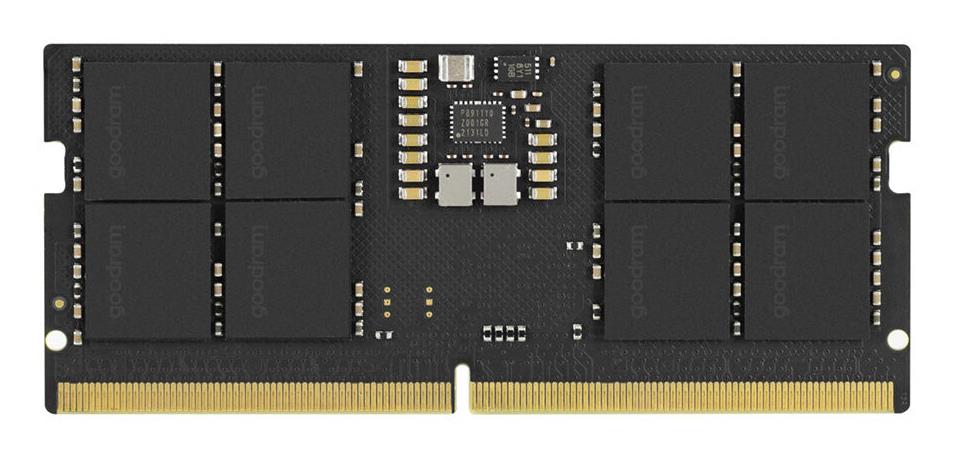
Memory speed (frequency), measured in megahertz (MHz), indicates how quickly memory can read and write data. Latency (CAS Latency, or CL) measures the delay between issuing the first command and accessing the data. The general rule is simple: higher frequency is better, and lower latency is better. However, it’s important to know that your laptop’s motherboard and processor support only certain speeds. Even if you buy faster memory, it will run at the maximum speed supported by your system.
This is the most common concern when upgrading memory. Here are a few simple steps to make sure you buy the right SO-DIMM module:
Choosing the right components can seem complicated, but our goal is to make the process as simple and secure as possible. Ordering laptop memory from our store is quick and convenient.
| Question | Answer |
|---|---|
| Can I replace my laptop’s memory myself? | For most laptops, replacing the memory is a simple process that requires just a screwdriver and a few minutes. Usually, all you need to do is remove the service panel on the underside. However, we always recommend checking the specific instructions for your model first (e.g. on YouTube). |
| What does it mean if I buy two memory modules as a kit? | Buying two identical memory modules as a kit is recommended to ensure they run in dual-channel mode. This theoretically doubles the data transfer rate between the processor and memory, providing a noticeable performance boost, especially in systems with integrated graphics. |
| Will faster memory always make my laptop faster? | Not always. The performance boost depends on what the bottleneck is in your system. If you have enough memory but a slow processor or hard drive, faster memory may not make a significant difference. Increasing memory capacity (e.g. from 8GB to 16GB) usually makes a more noticeable difference than simply increasing its speed. |
| What happens if I install the wrong type of memory? | Physically different memory types (e.g. DDR4 and DDR5) won’t fit into each other’s slots, so you can’t install them incorrectly. If you install memory that’s too fast for your system, it will simply run at a lower, supported speed. In the worst case, the computer may not boot. |
 DIMM Memory
 Electronics Accessories
 Smartphones and Tablets
 TV, Audio & Video
 Laptops and desktop computers
 Storage and NAS Systems
 Networking
 Power Supplies and UPS
 Security solutions
 Peripherals and Office Products
 Servers and Components
 Gadgets and Mobility
 Renewable Energy
 Barcode Scanners
 Laptops, Computers and Accessories